
1. Choose a specific story and viewer
A faceless video uses visuals and sound without requiring you to appear on camera. Choose one viewer question, emotional payoff or narrative change before choosing a generation model. A premise such as “a dragon’s fiery mishap invents a new dessert” gives the video a change and an ending.
For an educational or documentary video, research the subject and check the factual script first. For fiction, focus on cause and effect.
2. Write for the voice and the screen
Plan the narration and visual action together. Give each scene a purpose: introduce the situation, develop the story or deliver the payoff. Let the images communicate details that do not need to be repeated aloud.
Read your script aloud to check pacing. Shorten lines that crowd the action, and leave space for the viewer to understand each scene.
3. Plan scenes before generating clips
Approve character and location references, then make storyboard frames. Check composition, continuity and how each image supports its line of narration. Choose the aspect ratio in the brief for your intended upload.
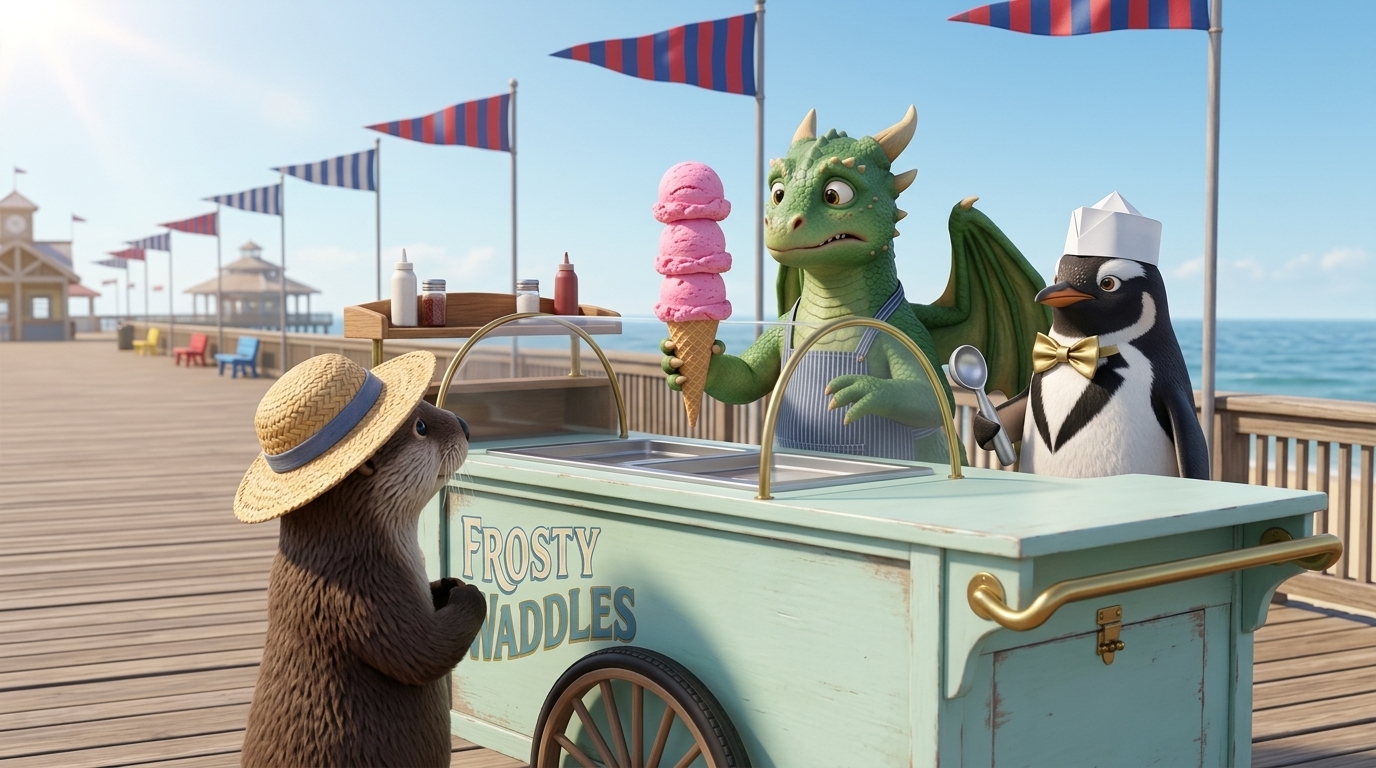
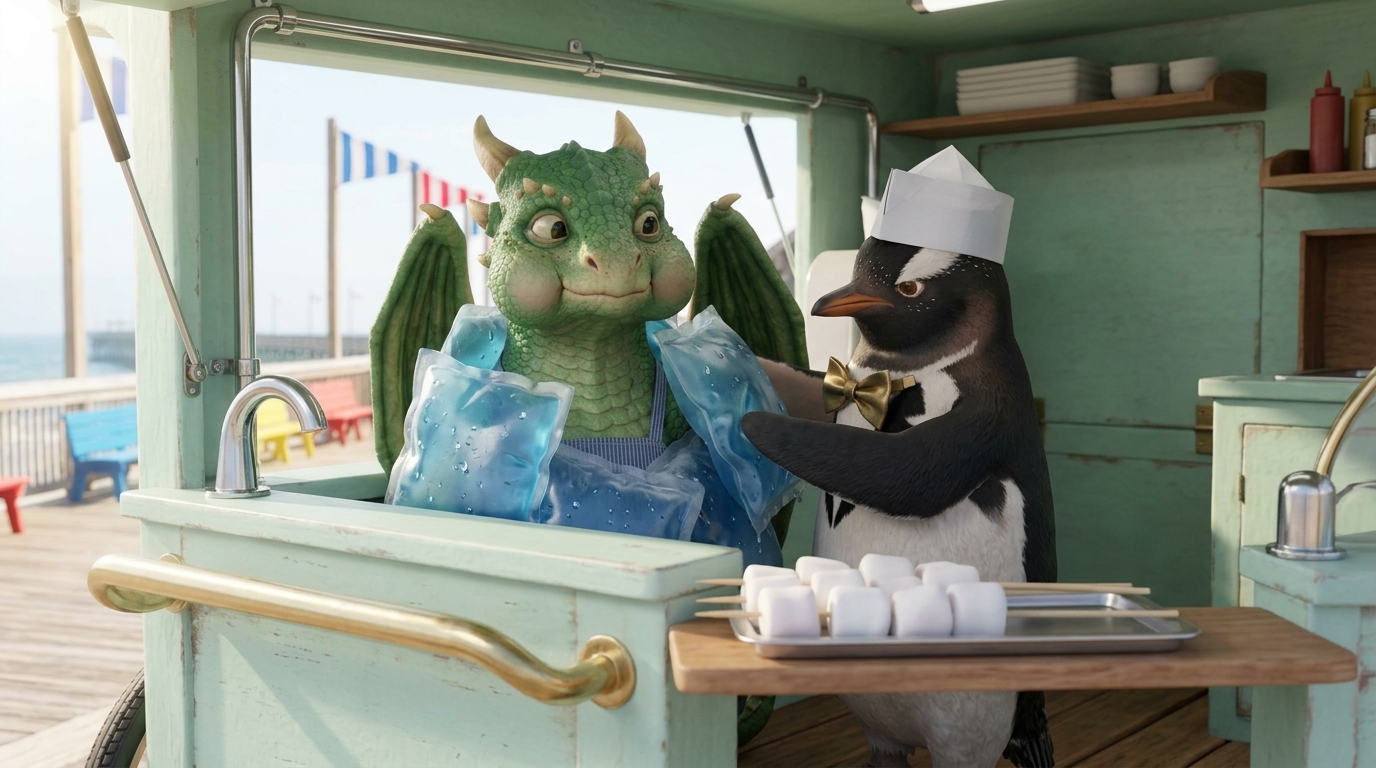
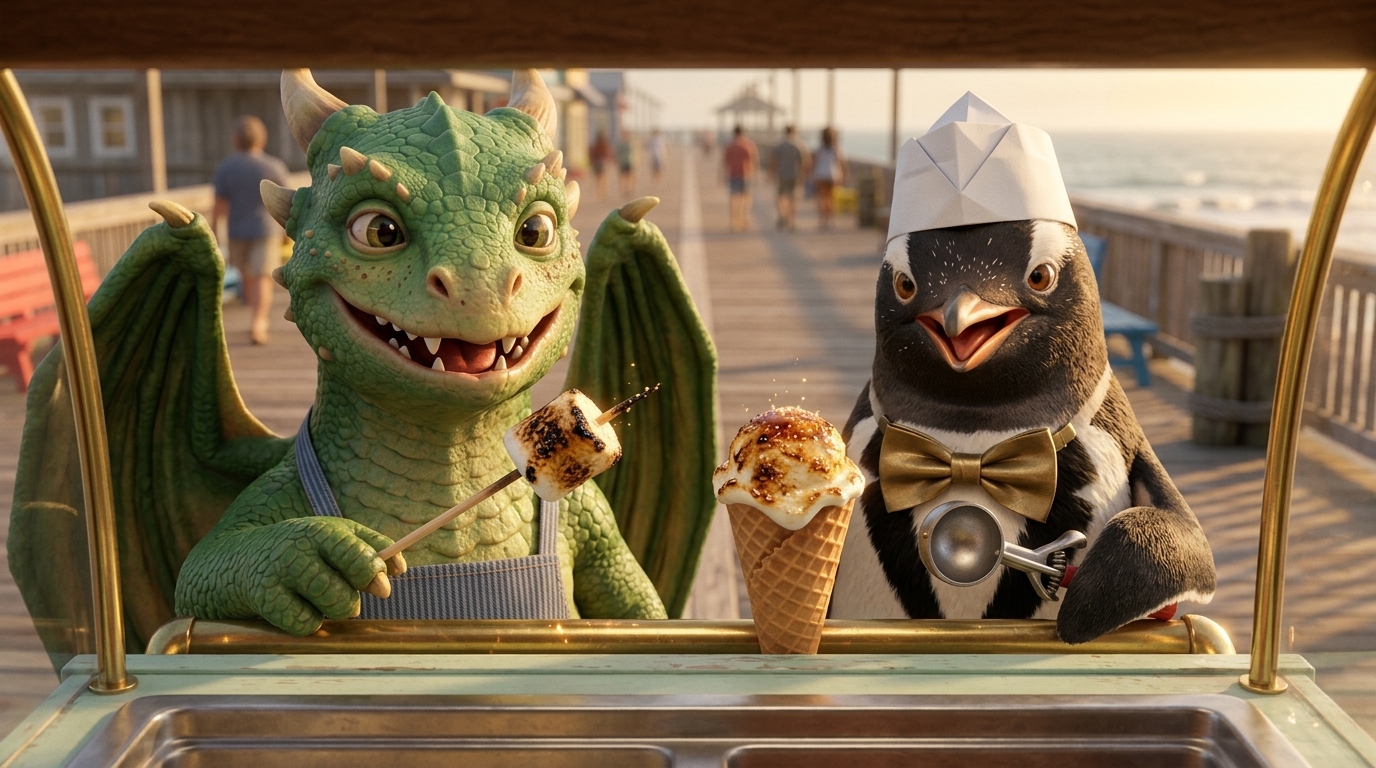
Storygate's faceless video workflow lets you inspect frames and voice reads before moving to animation. If your channel uses a returning character, series references can give the next chapter a shared starting point.
4. Choose and review your narrator
Choose a voice that suits your channel, generate the narration and listen for pronunciation, pacing and tone. Check that each read matches the script before animating the shot.
For recurring videos, save a series narrator to give future episodes the same starting voice. Review every read for the delivery you want. Learn about voice consistency.
5. Add music, captions and a finished cut
Select music that supports the narration and enable word-highlight captions for supported English narrated videos. Assemble the scenes, then watch the full export to check the opening, pace and ending.
Download your MP4 and available subtitle files. Keep the asset ZIP if you want to continue editing with the individual clips, frames, narration and music. See plans and generation credits.
Keep the MP4, subtitles and source assets
After assembly, download the finished MP4. Eligible English narrated cuts also provide generated SRT/VTT subtitles, useful when you want a separate timed-text file, as well as an Assets ZIP containing the cut’s clips and available frames, narration, selected music and subtitle files.
Use the ZIP for further editing or keep it alongside the published cut. The files do not recreate an editable timeline automatically. Review subtitles against the speech before uploading; current automatic subtitle support excludes dialogue cuts. Read the supported caption workflow.
6. Prepare the YouTube upload yourself
Exporting completes the production step. You still choose the title, thumbnail, description, audience settings and publishing schedule. Storygate does not automatically upload or manage a channel.
Before publishing, check the current platform requirements and rights for the material you use. Give the audience original storytelling or useful explanation rather than relying on generation alone.
Tell stories in your audience’s language
Create narrated stories in 22 languages, including Hindi, Nepali, Spanish, French and Arabic. Choose the content language in the brief and review wording, pronunciation and timing before generating the video. A narrated series can also keep a default narrator for new episodes.
See all supported narration languages and the workflow. Character dialogue and automatic subtitles currently support English only.
7. Improve the next video from real feedback
Watch for places where the story becomes hard to follow, narration competes with the visuals or the opening promises something the ending does not deliver. Improve that specific part in the next script. When using a recurring cast, also review visual and voice continuity.
Your first outline and one AI revision are free. Script and media generation use a paid plan and credits. Review the itemized estimate before confirming each generation; another take uses additional credits. Begin with an outline in the faceless video generator, or read the shot-by-shot filmmaking guide for more detail.