
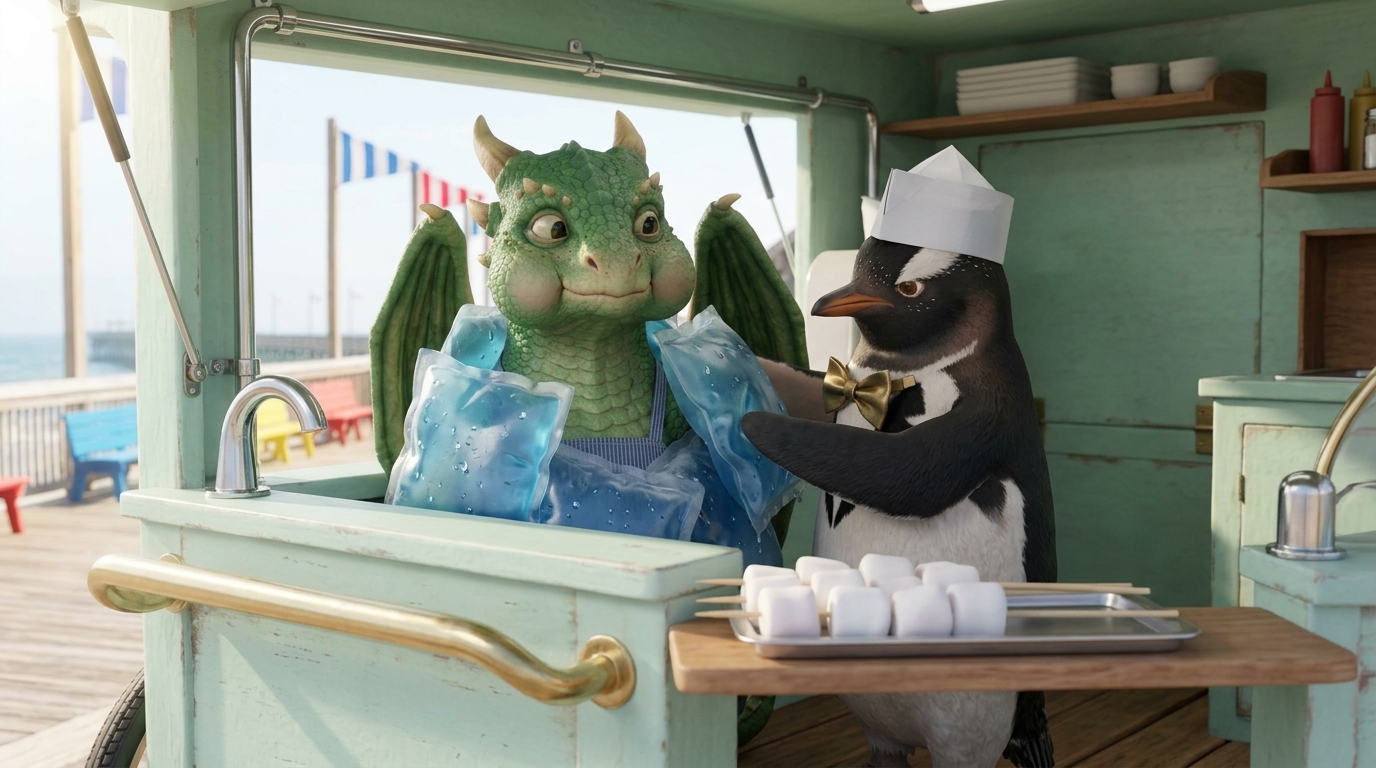
For creators whose story is the focus
A faceless video does not need an on-camera presenter. It can use an original fictional story, a researched explanation or a narrated sequence of scenes. Storygate is suited to creators who want to develop and direct those scenes, including recurring characters and episodic stories.
Choose the subject and narrative first. For explanations or documentary topics, verify the factual script and supporting sources before generating visuals. A polished scene is not evidence that a historical or scientific claim is correct.
From topic to a video you can publish
Choose a specific viewer and payoff
Decide what the viewer should learn or feel by the ending. Turn that into a brief and review the proposed outline.
Write narration that fits the scenes
Edit the wording before requesting a voice read. Leave space for images to communicate; every second does not need speech.
Build the visual sequence
Approve references and frames, then render the clips. Review the relationship between each line and the action on screen.
Finish, export and publish
Choose music and supported captions, inspect the full export, then upload it yourself. Prepare the channel title, thumbnail and description for your audience.
Direct the narration before the footage
Choose an available narrator and set the tone and delivery you want. Edit each shot’s words, generate the voiceover and review the read alongside the frame. This lets you catch pacing and pronunciation issues before committing to animated footage.
For a recurring channel format, save a series narrator so new narrated episodes start with that voice. Voice continuity also includes reviewing delivery; returning to a voice does not make every read identical.
Create narrated videos in 22 languages
Tell a Hindi story, make a Spanish narrated short or build a Nepali storytelling channel. Choose your content language when setting up the brief, then develop the story and review each narration read before generating the footage.
Available narration languages: English, Nepali, Arabic, Bengali, German, Spanish, French, Hindi, Indonesian, Italian, Korean, Marathi, Dutch, Polish, Portuguese, Romanian, Russian, Tamil, Telugu, Turkish, Ukrainian, Vietnamese.
Choose the language for your audience
Select narration and your content language in the project brief. Describe the story, audience and tone you want.
Review the script and voiceover
Check the generated wording, names, pronunciation and pacing with someone fluent in the language. Edit and regenerate individual reads where needed.
Finish your narrated video
Approve scenes, add your selected music and export the assembled MP4. Download available narration and other media in the asset ZIP for further editing.
Language support here is for creating new narrated videos. It is not an automatic translation or uploaded-video dubbing workflow. Character dialogue and automatic subtitles currently support English only. For other languages, add subtitles in your preferred editor after export.
English subtitles, with files you can reuse
For supported English narrated cuts with word timings, turn on word-highlight subtitles burned into the exported video. Generated SRT and VTT subtitle files are also available as downloads from Final Cut and included in the asset ZIP.
Automatic subtitle support is limited to English narration. Cuts containing dialogue do not yet produce automatic subtitles or SRT/VTT files. Older narration assets without word timings need a new read before they can be captioned. Review the captions alongside the narration before publishing.
Add music and keep your production assets
Describe the background score for each act, audition a generated track and select it—or choose no music. Final Cut assembles your approved clips, narration, selected music and supported subtitles into an MP4.
Download the organized Assets ZIP if you want to finish elsewhere. It includes clips and available frames, narration, music and subtitle files, so you can continue working with the media rather than starting again.
A story worth watching, without appearing on camera
Create an original story for your channel with generated scenes, a chosen narrator, background music and English captions. Your story and creative direction give the video its voice.
Prepare your video for your channel
Export your finished video, then add the title, thumbnail and description that introduce it to your audience. Publish it on your channel when you are ready.
Choose the aspect ratio in your brief for the intended destination. Review framing and caption placement before exporting. For a channel with a returning cast, the episode workflow can carry production references into the next chapter.
Questions before you start
Can I choose the narrator?
Choose an available narration voice and review the generated reads. Voice, model, language and caption support are separate capabilities; verify the combination you need before committing to a full project.
Does Storygate automatically post to YouTube?
No. Export the completed video and publish it yourself. Channel management, thumbnails, descriptions and scheduling remain part of your publishing workflow.
Can I try it for free?
Your first outline and one AI revision are free. Script and media generation use a paid plan and credits. Review the itemized estimate before confirming each generation; another take uses additional credits.